Remember you'll be nervous on the day of your interviews, so make sure you've done enough practice to feel happy and familiar with what you need to do at the end of your invigilation session - it'll make things so much easier for you on the day!
This information is for Economics and Maths applicants who have received an invitation to interview.
When you finish your invigilated work, you'll need to scan and email it to the email address specified in your invitation to interview. The easiest method for this will be to use a smartphone as a scanning device. We suggest an app called CamScanner. Click here to download CamScanner, or search for it in your app store. It's free, but you'll need to download it ahead of time.
If you can't use CamScanner in your country or strongly prefer an alternative which you are familiar with, see the drop-down info at the end of this page.

When ready to scan, put your pages in the order you will scan them and open the
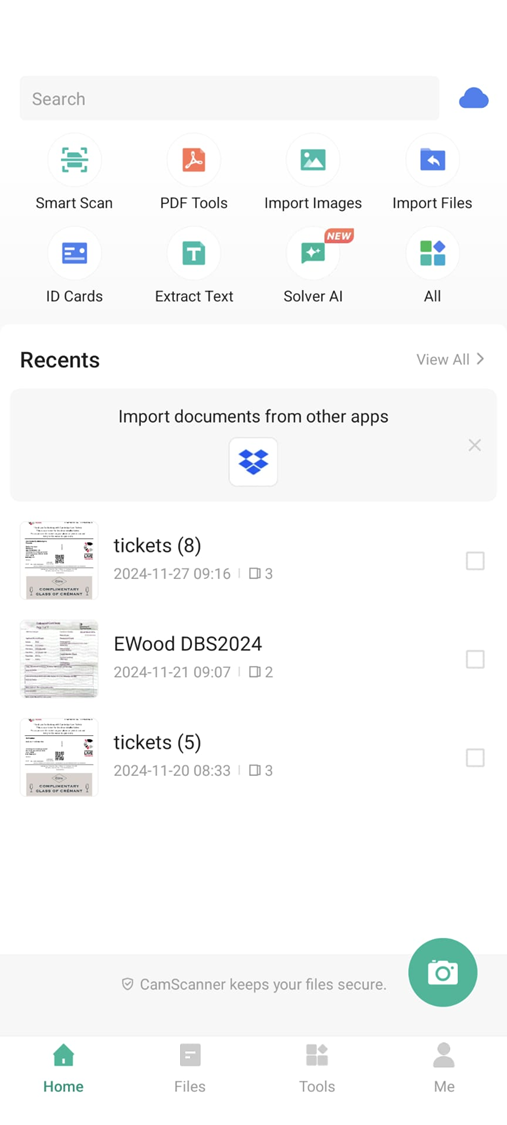
CamScanner app.
If at any stage something pops up about paying for this or premium CamScanner, just click the X to close it.
Click the camera icon in the green circle in the bottom right of the screen. This will take you staight to the screen needed to photograph your work.
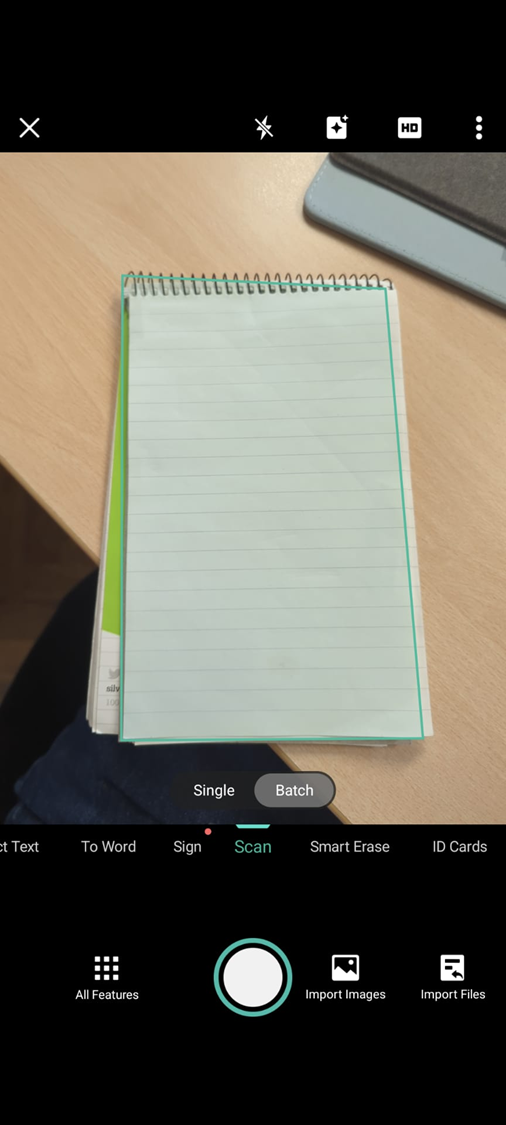
Select 'Batch'. Then take a photo of the first page of your work. Your paper should be flat on the table. Hold your phone directly above the paper. Move back enough for all edges of the paper to be within the camera's field of vision - CamScanner will recognise the edges and crop automatically.
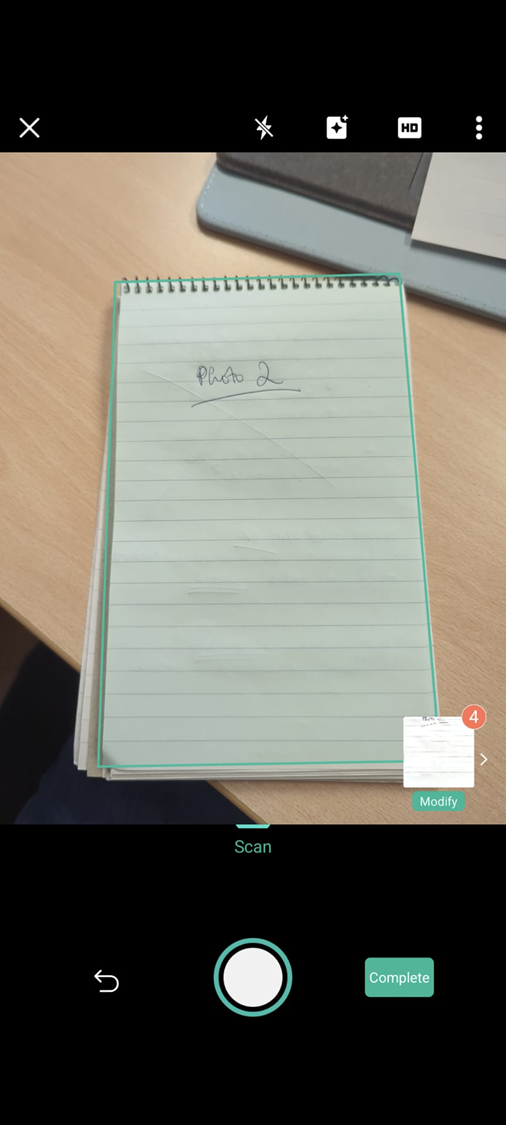
Keep taking photos of each page until you're done. You'll see the images accumulate in the bottom right.
When finished, press 'complete'.

| Remember to check you have selected 'Batch' rather than 'Single' if you are scanning multiple pages! Batch allows you to capture all pages for your pdf one after another. You can edit/rotate as needed after scanning all your pages. |
Check your pages are
> CLEAR and READABLE
> in the order you expected
> the correct way round
If the quality of the image is blurry, retake the photo.


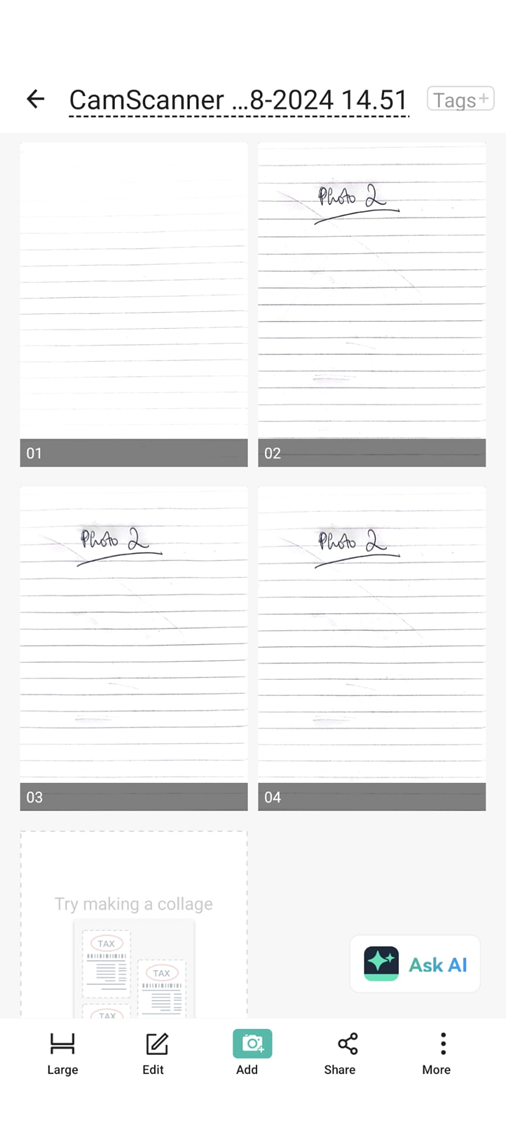
Editing pages: tap the individual page you want to change (e.g. to rotate it). Then tap Edit > use the buttons to rotate or adjust the crop of the image. Tap the tick to confirm changes, and then Done (top right).

To change the order of your images, tap and hold one of the pages. Then select the page(s) you want to move, and then drag to reorder.
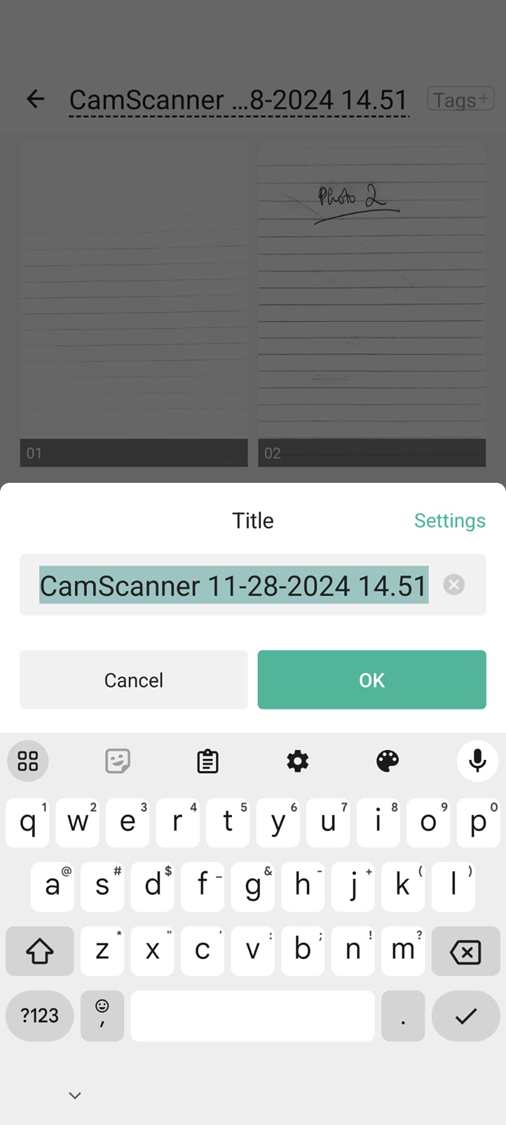
Edit the document name as instructed. To do this, tap the file title at the top of the screen.

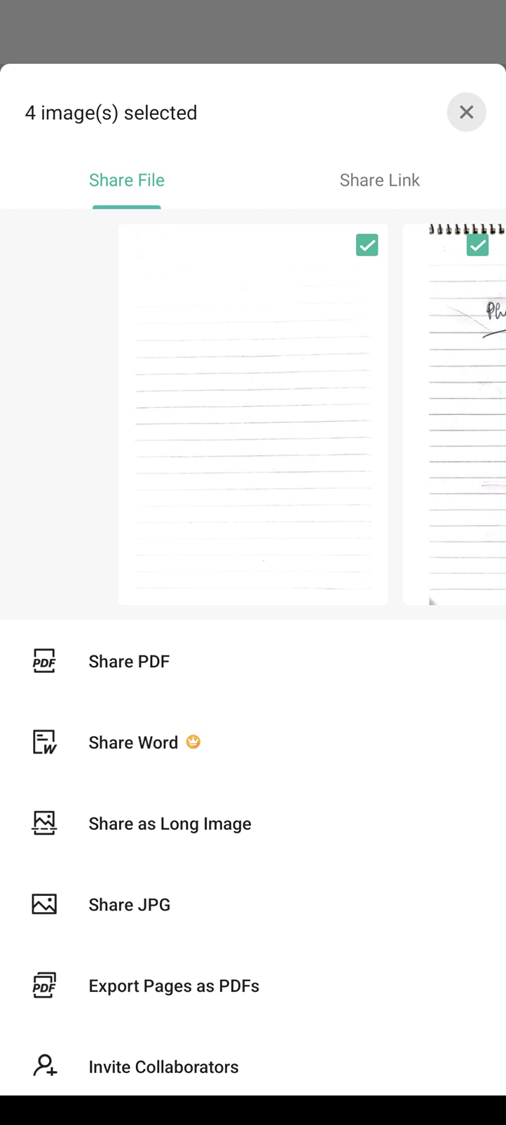
Tap share and then Share PDF.

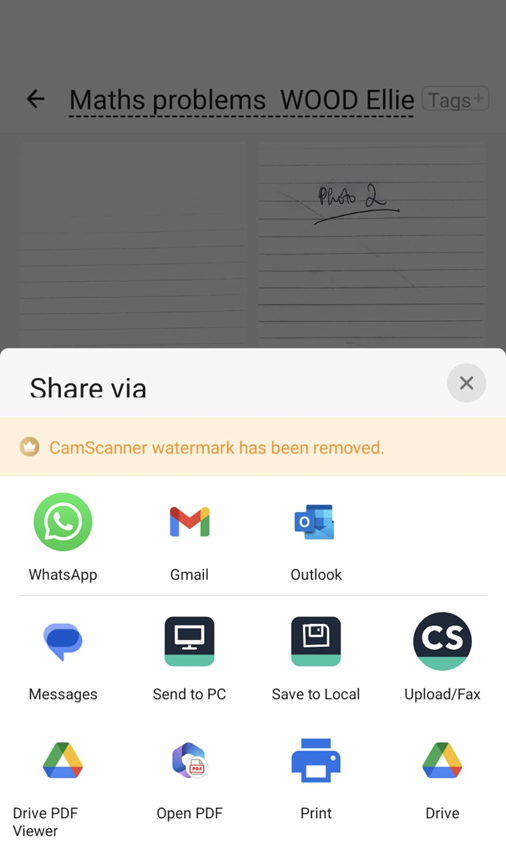
Select your email application.
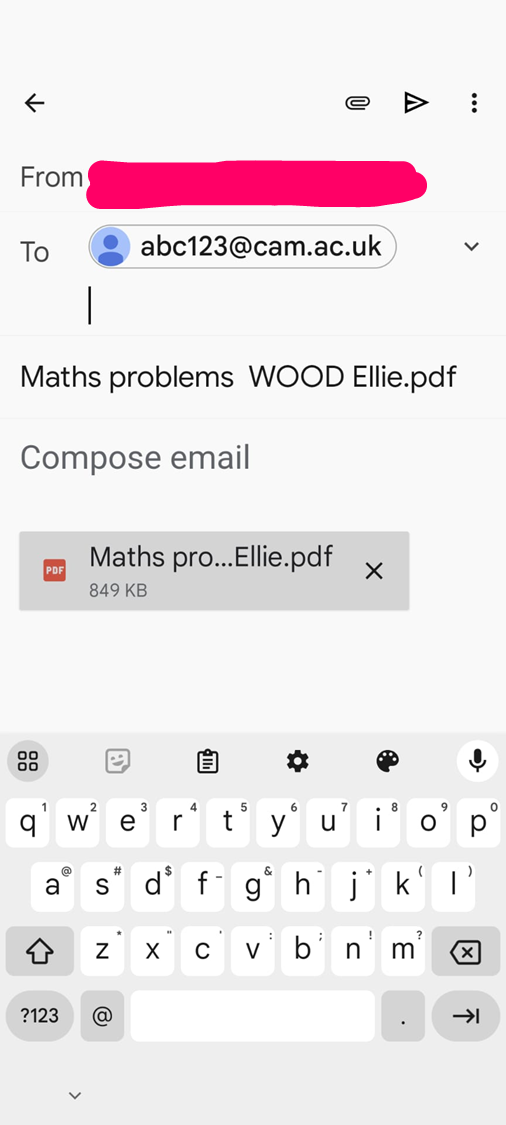
Type the email address your have been instructed to send your work to. Double check you have typed it properly.
Check the PDF is attached. Send!
![]() | ![]() |
Economics: please wait for your invigilator to confirm receipt of your work before leaving the invigilation session for your interview.
Mathematics: double check your 'sent mail' in the email you just used to send your work to confirm it has sent. You may then progress to your interview.
If you're not able to use CamScanner in your country, or strongly prefer another app that you are familiar with, you may use an alternative app as long as
> you know how to use it
> it is quick to use
> it scans at decent quality and produces a pdf file (the file must end .pdf).
Please make sure you have the app on your phone ready and that you have done a recent practice, scanning to pdf and emailing the file as an attachment.
Alternatives include Adobe Scan.